 |
 |
 |




|
|
WinCraps™ Frequently Asked Questions 
I'm interested in playing WinCraps. How do I get started? First, you'll need a copy of the game software. If you don't already have a copy then click here to download the latest version of WinCraps. The file you'll download is a single file named WINCRAPS.EXE which is actually a collection of many files that have all been compressed together into one self-extracting zip file. To install the game, simply run WINCRAPS.EXE. You can do this by clicking your Windows Start button, then choosing "Run", and entering the path and file name of WINCRAPS.EXE. For instance, if you downloaded WINCRAPS.EXE into your TEMP folder, you would enter C:\TEMP\WINCRAPS.EXE Another option is to open your Explorer and double-click on WINCRAPS.EXE. A small window with three buttons will appear. Press the one marked "Setup" to proceed. This will cause the game files to be extracted to a temporary folder. You'll then be presented with opportunities to select a permanent folder as well as create shortcuts. The default folder is C:\WinCraps but you can select another or create a new one if you like. All of WinCraps' files are copied to the single folder which you specify. There are no hidden files and no changes to your system registry or configuration. When installation is complete (or if you should cancel installation) the temporary files and folder will be deleted. If you're unable to install WinCraps using the automated installation program, you can manually extract WinCraps' game files from WINCRAPS.EXE using any standard zip program. In this event, if you're installing WinCraps into the same location as an earlier version of WinCraps, be sure to overwrite all files. To run WinCraps, simply invoke the game from the desktop or program menu shortcut if one was created during installation. If shortcuts were not created during installation then you must locate and run the file WinCrapsPro30b.EXE. You'll find this file in the folder you specified during installation.
Note: If you're installing an earlier version you'll need to look in the game folder to find the executable game file name and use that. For instance, to run classic version 5.1c you'd enter C:\WINCRAPS\WC51C.EXE To uninstall WinCraps, simply delete the folder containing WinCraps' game files.
After installing WinCraps, I dragged the game's executable file to my desktop. But when I try to run the game I get something that says "runtime error". What's with this? This error should only appear with the classic or older versions (the pro version should just show a warning). By dragging the main game file to the desktop, you isolated it from its needed support files. You should keep all of WinCraps original files together in the same folder. (New files that you create such as Auto-bet and Dice Roll files can be located anywhere.) The same is true for shortcuts. Any shortcut you create needs to start in the folder containing the main game file as well as its support files. The easiest way to create a shortcut is:
2) Right-click the main game file WinCrapsPro30b.EXE. A menu will appear. 3) Select SEND TO. A second menu will appear. 4) Select DESKTOP (Create shortcut) An alternate way of creating a shortcut is:
2) Select NEW from the menu. A second menu will appear. 3) Select SHORTCUT. A "Create Shortcut" box will appear. 4) In the location box enter C:\WINCRAPS\WinCrapsPro30b.EXE (unless you installed WinCraps into a different folder. In that case enter the folder you used or find it with the BROWSE button.) 5) Click NEXT 6) Enter a name for your shortcut such as "WinCraps" 7) Click FINISH A shortcut will then appear on your desktop. Just double-click it to start the game.
WinCraps has been properly installed on my computer but some strange things happened inside the game when I ran it. Any ideas? Most likely the game's default save file has become corrupted, possibly due to an interruption during shutdown. This is easily corrected by exiting the game and deleting the file DEFAULT.CRP from your WinCraps folder. This is in effect a "master reset" and will result in all the game features reverting to their original WinCraps settings.
Will WinCraps run on Windows XP, Vista, 7, 8, 10, or 11? Yes.
Will older versions of WinCraps run on Windows XP, Vista, 7, 8, 10, or 11? Yes. However, classic versions 4.7d and earlier will not run on Windows 10 or 11. Versions 5.0p and earlier will likely need a file called WINHLP32.EXE if you want to be able to run WinCraps' help file. Microsoft decided not to support their older help file format and doesn't includes WINHLP32.EXE with newer operating systems. Although Microsoft doesn't allow developers to redistribute WINHLP32.EXE they do allow users to download it free of charge here: go.microsoft.com/fwlink/?LinkID=82148 Additionally, if you're running version 4.7d or earlier and if you should experience any problems, you may need to do this: Open your Windows Explorer to the WinCraps folder. Right click on the main game file (for instance, the main game file for version 4.7d is WC47D.EXE), choose Properties, and then click the Compatibility tab. Check "Run this program in compatibility mode for", and select the Windows 95 version.
Will WinCraps run on my Mac? Yes. Although WinCraps is written for Windows, many folks are running it on their Macs using Windows emulation software or virtual machines such as Parallels or VMware Fusion. Here's a nice article explaining some options 5 ways to run Windows software on a Mac
WinCraps seems to be running very slow. Is there anything I can do about it? Here are a few possibilities:
Is there a way to automatically play the same rolls over again so I can compare different methods? Yes, absolutely! You can repeat the rolls played using either of two methods:
Can you recommend a good system to play? That depends on what you define as "good". We all have our own desires, goals, limitations, and expectations. How much risk do you want to take? How long do you want to play? How much are you willing to spend? Will you accept small wins or would you like to shoot for the moon? What may be a good system for someone else may be completely wrong for you. Therefore, the only one who can really decide what's a good system, is you. In order to develop and/or evaluate your system, you're going to need to practice with it. But do you really want to do that in a casino with your hard-earned cash at stake? Hardly. Save yourself a lot of time, energy, aggravation, and MONEY by practicing on WinCraps first. Although nothing (including WinCraps) can guarantee what your outcome will be on your next outing, with enough practice you should develop a feel for the kind of action you might expect to see.
How can I get the bankroll indicator to reset so I can start over? Select "New" under the Game menu to reset the table. Your initial bankroll will be determined by the settings on the Bankroll tab of the Configuration screen. The Configuration screen is also found under the Game menu. If you don't want to start a completely new game/session, you can make bankroll adjustments through an ATM on the bankroll tab.
How do I play an auto-bet file? First you need to open the auto-bet file as follows:
I'm trying to write some auto-bets in WinCraps Classic but I can't get the game to log any of the lines I make. Can you advise? To log an auto-bet, first modify the type of line that you want (Condition, Action, etc.), then click on the command button next to the line. For instance, to log a condition line, click on the button to the far left marked "Condition". When you do, the condition line will turn red and the mouse-pointer will change. Next click inside the large logged bets box on the place where you want the line to appear. Voila!
How can I use auto-bet to bet all the Place bets except for the point? There are many ways to do this depending on what you want to do. In WinCraps Classic, the easiest would be something like this:
This will keep all Place bets except the point covered at all times and for the same amount (note: with the auto-adjust bet amounts feature activated, the $5 Place bets on 6 and 8 will automatically change to $6.) However, if your intent is to allow winning bets to be pressed up then you shouldn't use a blanket statement to make the bets. In this case, you only want to make bets where the existing Place bets are zero so you need to address each bet individually, something like this:
In WinCraps Pro you could just write:
This will preserve pressed amounts except where new points are established. However, sometimes people who play Place bets want to preserve the amounts from new point numbers and transfer them to open Place bets. For instance, say the point is 6 and the Place 8 had been pressed up to $30. The shooter makes the 6 and then establishes a new point of 8. The Place 6 now needs a bet and the Place 8 needs to come down. The solution is to transfer the $30 on the Place 8 to the Place 6. In fact this is usually what the dealer will ask if you'd like to do. In some cases you'll need to add or remove a small amount to properly size the new bet. For instance, if a $10 Place 9 bet is transferred to the Place 8, the dealer will ask you to throw in $2 to make it a $12 bet. If you'd like to play this way, you can use an auto-bet file called place bet point xfer to do it for you.
I'd like to make a Place 6 or 8 bet for less than $6, but each time I try, the program changes it to $6. The same thing happens when I try to make Place 4,5,9,or 10 bets for less than $5. Is there a setting to allow me to do this? Yes, absolutely! Navigate to the Auto-play screen (found on the Action menu) and set the "Auto-adjust bet amounts" feature to "manual". With "manual" selected, the game will allow you to bet any amount you want (as long as it's not less than the minimum bet or more than the maximum bet set on the Configuration screen). With either of the auto options selected, the game will automatically adjust any amount you bet to an amount that squares with the odds.
Can I move checks from one bet to another? Yes, you can move checks from one bet to another by dragging and dropping them. Just point at the checks and hold down the Alt key, then click-and-hold the left mouse button and move the mouse-pointer to where you want the checks to go. Finally, release the mouse button and voila! - your checks will be moved to the new location. The dropped checks will be treated the same as if you had placed them there normally and are therefore subject to any options you have selected such as Auto-Adjusting bet amounts. If you drop your checks over an area where checks are not allowed, they are simply removed from the table.
At the casino I heard a dealer ask someone if he wanted to come "Down with odds". What does that mean and can I set WinCraps up to simulate it? When you have a Passline or Come bet which becomes established on a point number where you already have a Place bet, the dealer will ask if you'd like to come "Down with odds." It means to take down the Place bet and use the money to take odds on your newly established Passline or Come bet. Using the Auto-Play screen, you can set WinCraps up to give you "Down with odds" as follows: In WinCraps Classic, check both the "Auto-Take Full Odds" and "Auto-Remove Place Bets" boxes. In WinCraps Pro, select the desired player(s), then check both the "Auto-Take Full Odds" and "Auto-Down Place Bets" boxes.
How do I collect random data from random.org and use it to create a roll file to play on WinCraps? To collect the data:
To create the roll file:
That's it. Your rolls are now ready to play in WinCraps. You can add more rolls by repeating the process except instead of naming a new roll file, paste the rolls into your existing roll file. Remember that the rolls will be pasted in wherever the "Next Roll" is located in the dice roll file. See question #29 below for instructions on collecting data from HotBits.
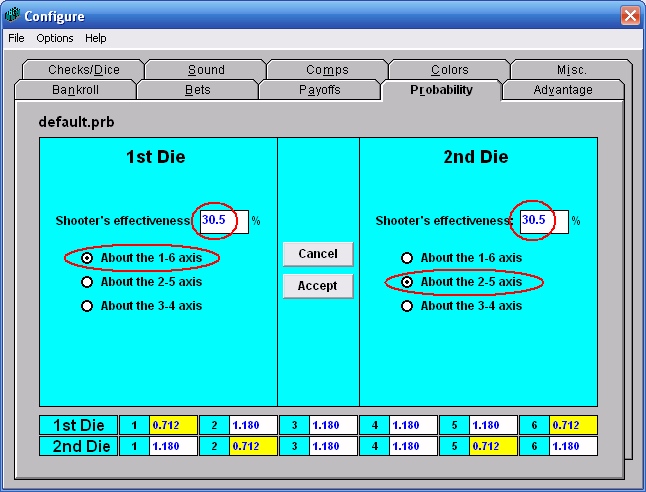
How do I set the probability matrix to roll the dice with an SRR of 6.143? SRR is a term used by many "dice-influencers" which stands for Sevens-Roll-Ratio and is simply a different way of expressing the probability of a seven. Normally the seven appears an average of once every six rolls and the probability is expressed as 1/6 = 16.67%. However, with SRR just the denominator is given, so the normal SRR is 6. A larger SRR value would mean that sevens are appearing less often and a smaller SRR value would mean that sevens are appearing more often. 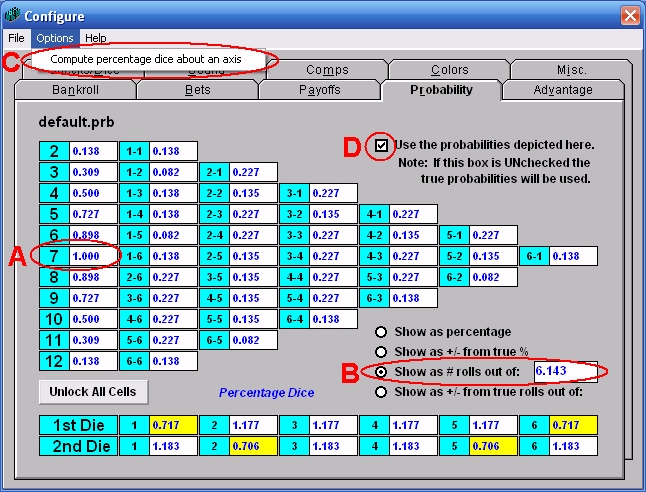
I have some auto-bet files written for WinCraps Classic that I opened in WinCraps Pro. I noticed that all the "While" statements got converted to "If" statements whereas the "When" statements got converted to "If" statements and were also retained as green comments. Why is that and do I need to do anything about it? In WinCraps Classic, "When" and "While" both mark the beginning of conditional statements and so both are converted to the comparable "If" in WinCraps Pro. However, "When" performs an additional function which "If" does not and therefore "When" is retained as a comment to remind you to check the script to ensure that it functions as originally intended. To review from the WinCraps Classic help file:
1) All conditions in the block are currently true, and 2) At least one condition in the block was false before the most recent roll. In other words, "When" provides the additional means to determine the moment that conditions become true. You can think of it as a trigger that's pulled when conditions become true but is not released and cannot be pulled again until conditions become false. Of course, you can do the same thing in WinCraps Pro but you have to provide the trigger yourself. For example, say that you'd like to count the number of times the shooter establishes a point of 6 and in WinCraps Classic you script the following:
Using "When" allows you to increment your count only if the point 6 is established but was not established on the previous roll. So if a shooter rolls a hand of 6, 8, 10, 7 then Chip-Stack #1 will hold the correct value of 1. But what happens when this gets converted to WinCraps Pro?
This time following the same rolls, CheckStack1 will hold the incorrect value of 3. Why? Because the counter continues to increment as long as a point of 6 is established. So instead of the number of points established on 6, you'll have the number of rolls while a point is established on 6. What you need to do is incorporate the part of "When" which states that at least one condition in the block must have been false before the most recent roll. For example:
This time CheckStack1 will show the correct value of 1. In some cases, it might not matter whether the Classic script used a "When" or a "While" so you can just delete the green commented 'When.
I have some auto-bet files written for WinCraps Classic which use flags. How do I convert these files to run in WinCraps Pro? A flag is just a variable that can be assigned a value of true or false and then used in a logical argument. In WinCraps Pro flags have been merged with CheckStacks because CheckStacks (called ChipStacks in WinCraps Classic) are also variables and can also be assigned values of true and false. So, all you need to do is replace your flags with checkstacks. For example, say you have a classic script which contains the following two auto-bets:
When you open this script in WinCraps Pro, the syntax will be converted as follows:
Notice how the flag statements have been deactivated with apostrophes thus turning them into comments (green text). Now decide which checkstack you want to use and replace the green text as follows:
That's all there is to it. If you'd like to retain the name "Double Up" because it makes the script more readable, then you can just tack it onto the end of the checkstack name together with a period. You can also abbreviate the checkstack name and use an equal sign as follows:
I have a dice roll file that I want to save as a text file but in a different format than what the game provides. For example, for a twelve I want the file to show "6 6" and not "(6-6)". Can I do that? Yes, of course! You can use an Auto-bet script to output the rolls in whatever format you want. In WinCraps Pro you could write:
This will save all game rolls no matter what the source. So to create a text file from an existing roll file, you would open the dice roll file on the dice roll files screen, set the recorder to "Playback", return to the game table and start a new game. Run the hyper-drive to get through the roll file quickly. In WinCraps Classic, you don't have quite as much flexibility but can still do a few things. For example:
Unfortunately, output can't be concatenated in the Classic version like it can in the Pro version, and you can't query for the output filename but rather need to enter it directly into the code (e.g. "Rolls.txt"). Furthermore, each item output will be followed by a tab character so your output will look like "6 6" rather than "6 6" but if your ultimate goal is to load the text file into a spreadsheet like Excel then the tab characters (together with the Newline command which is a carriage return) will cause the numbers to fall nicely into two separate columns. If you want this in the Pro code then just enter the word "Tab" such as: "Output to file Die1 & tab & Die2 & cr
I'm writing an auto-bet script and I want to refer to a figure on the Bet Results screen. What I want is the total dollar amount won or lost on ALL bets of a shooter's hand. How can I do this? I tried the following and it didn't work:
The keywords "Any" and "All" are used to define lists wherein items are individually evaluated and compared to something or set to something. In your case, you're not comparing or setting the items in the list, you're trying to set the value of checkstack1. But you can't just set it to a list of values - you have to set it to a sum of those values. For example:
Furthermore, while the above statement will correctly reference the shooter's net win/loss during his hand, you'll need to change it a bit if you want to reference his net win/loss at the end of his hand. Since a shooter's hand finishes when he/she seven's out, the dice will be passed and the statement above will reference the new shooter. So in this case you should change it to reference the "last shooter" and the "last hand". For example:
How do I take odds on my Come bets? There are three ways to take odds on Come bets: 1) Select Auto-play from the Action menu and check the "Auto-take full odds" box (for the pro version, this setting will be applied to the players you've selected). 2) Manually take odds by clicking in the center of the point box on the table layout (for the pro version, be sure that the desired player is selected). In a casino, Come odds are placed on top of and slightly offset from the flat bet. In WinCraps, Come odds are also offset but always toward the center of the point box. For example, to take odds you would click anywhere in the yellow hatched area shown here: 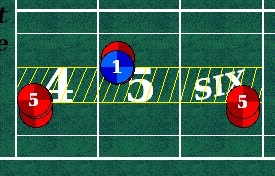
3) Enter commands in your auto-bet script. To accomplish the same thing as option #1 above, you would write:
However, you can also bet specific amounts of odds for each flat bet. For example, you could write:
Or you could write something a little more general:
How do I write an auto-bet script that only makes two Come bets? Well, what would you do at a real table? You would count them as you make them, right? You might keep track of the count in your head, make tick marks on a piece of paper, make a stack of $1 checks, or something similar. With auto-betting, you can easily keep track of a count like this using a checkstack. So at the place where your script makes a bet, you would add a line that says something like: Add 1 to checkstack1 You could also abbreviate checkstack1 to cs1 and add a comment to help yourself remember what it's for. For example: Add 1 to cs1.#comebets Then include this count in the conditions that you use to make your Come bets. For example:
Once two Come bets have been made, the value of cs1.#comebets will become 2 thus rendering the conditions of the auto-bet false and preventing it from making any more Come bets. Now, did you really intend to make just two Come bets for the whole session? What if you want this betting scenario to repeat, say for every shooter? Then you'll need to reset your counter when the new shooter begins:
Since you won't be making Come bets until the new shooter establishes a point, you can place these lines either before or after the previous lines. For WinCraps classic, the whole thing would look like this:
So far, we've only addressed the issue of making two Come bets. Either or both could win or lose on the first roll or become established on points. What if your objective is to establish and maintain two Come bets on points? Then you don't really need the checkstack since you can just count the bets on the table:
How do I write auto-bet code to determine if a number is even? There are several ways to determine if a number is even. One is to divide the number by two and compare it to the integer of the same number divided by two:
Instead of using "int" as above, you could use a backslash for integer division:
Another option is to use modular arithmetic:
In this case, "mod" divides the number by 2 and returns the remainder. If the remainder is 0 then the number was evenly divisible by 2. Unfortunately, integer conversion and modulus arithmetic are unavailable in the classic version. However, you can use the "Round" function instead. For example:
I've configured my WinCraps Pro table with several players and assigned each of them an auto-bet script. Two of the scripts contain the "Pass the dice" command, yet one of the players still ends up shooting the dice. How can that be? This has to do with the order of script processing. Remember that (except for initialization) auto-betting takes place AFTER the dice roll and that scripts are processed beginning with Player1 (in the upper-left position as viewed by the stickperson) and proceeding counter-clockwise to Player8. So for example, let's say Player1 and Player2 both have scripts with "Pass the dice" commands. Player3 is the shooter and sevens-out. Winning and losing bets are processed first and then the dice are passed clockwise to Player2. NOW the auto-bet scripts are processed. Player1's script is processed first. His script says to "Pass the dice", but since he doesn't have the dice, his command is ignored (unless he was given permission to pass the dice for other players). Next, Player2's script is processed. It also says to "Pass the dice" and since he does have the dice, he faithfully passes them to Player1. Since Player1's script has already been processed, he gladly accepts the dice and shoots. Player1 will only pass the dice if his script executes the "Pass the dice" command again on a subsequent roll. So how do you prevent Player1 from shooting at all? You should use the AutoPass feature. The "Pass the dice" command is best reserved for those times when a player already has the dice when his script is processed, like when he's been shooting but doesn't want to finish his hand. The AutoPass feature on the other hand, operates independently from auto-bet script processing and will ensure that Player1 always passes the dice whenever he's offered to be the shooter. You can either check the box "Auto-pass the dice" directly on the Auto-Play screen or you can enter the following line in your auto-bet script:
How do I write an auto-bet script which doubles a place bet every other win? One way to do something at set intervals (such as every other time) is to use a checkstack to count the events and take action when it reaches the desired number of events. You can then reset the checkstack to zero and start the count over. For example:
To make the same bet every third win, just change the test to "If checkstack1 = 3" Instead of using checkstacks, another option is to use the number of place bet wins (from the bet results screen) together with the "mod" operator. For example:
The "mod" operator (as mentioned in question #25 above) divides the value in question by the mod amount and returns the remainder. If the remainder is 0 then the value was evenly divisible. This works great for other frequencies too. For example, to double the bet every 3rd win, you would use "mod 3", for every fourth win use "mod 4", etc. Repeating this code for each desired Place bet will make them all operate independently. If you want to make them all work together such that every other win on the combined Place bets would cause the winning Place bet to double, you could write something like this:
Here's a script called regress n press inside-out which uses some of these concepts.
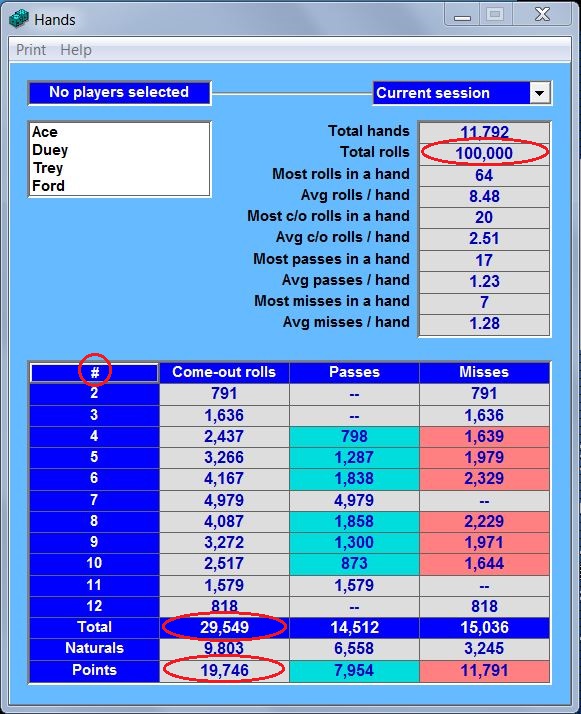
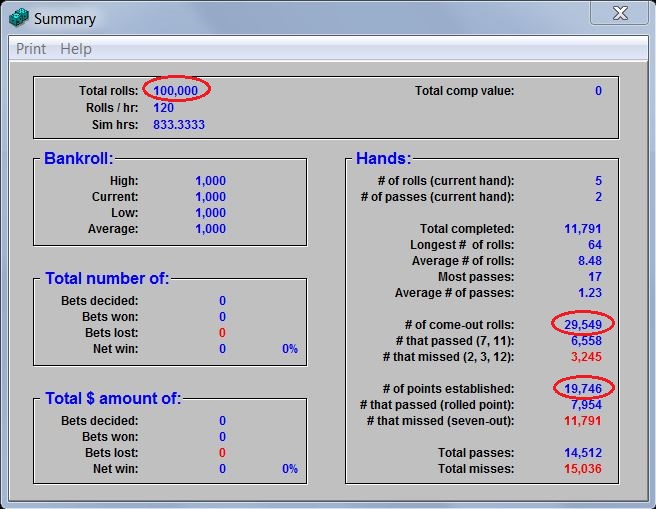
Where can I find the average number of rolls to resolve a point? In WinCraps Pro look at the Hands screen and in WinCraps Classic look at the Summary screen:
Assuming that you want the average number of rolls to resolve points after they've become established then simply take the total number of rolls minus the total number of come-out rolls and divide by the total number of points: (100,000 - 29,549) / 19,746 = 3.5679 To be absolutely precise you would need to ensure that the table didn't have a currently unresolved point. Also bear in mind that this answer strictly applies to the actual rolls you've experienced at the table (in this case 100,000). The theoretical average number of rolls to resolve a point is 3.5636. If you want some WinCraps Pro auto-bet code to do this for you, you can use this:
In WinCraps Classic you can use this (chip-stack #3 holds the answer):
If instead you wanted the average number of rolls to both establish and resolve a point then you would simply divide the total number of rolls by the total number of points established: 100,000 / 19,746 = 5.064
How do I collect random data from HotBits and use it to create a roll file to play on WinCraps? To collect the data:
To create the roll file:
That's it. Your rolls are now ready to play in WinCraps. You can add more rolls by repeating the process except instead of naming a new roll file, paste the rolls into your existing roll file. Remember that the rolls will be pasted in wherever the "Next Roll" is located in the dice roll file. Note that only the numbers 1 thru 6 are used for dice rolls so typically a request of 2000 hexadecimal numbers will only produce approximately 700 dice rolls. See question #17 above for instructions on collecting data from Random.org.
How do I write an auto-bet script that plays multiple sessions? You need to add the Start New Session command to your script. The trick is knowing where to add it and what things (if any) need to be done to initiate the new session. As usual, this depends on how you write your script. It's not meant to be confusing but rather flexible. For example, here's a simple little script that plays multiple sessions of twenty $5 passline wagers each:
Each time the Start New Session command is executed:
So for example, the bankroll will be reset according to the settings on the Bankroll tab (Configuration screen). Since this script counts passline wagers to start new sessions, the beginning bankroll must be a minimum of $100. Anything less and there's a chance that a string of losing wagers could exhaust the bankroll thus preventing 20 wagers from being completed and any new sessions from being started. There's nothing wrong with relying on the game's bankroll settings. You might just make a note of the minimum bankroll required in the script but another option would be to include the beginning bankroll in the script itself. This is easily accomplished using a condition called Beginning New Session. For example:
Another thing to note with this script is that it never ends. It just keeps playing new sessions as long as you let it run. Again, there's nothing wrong with this if it provides you what you need but if you'd like to set an exact limit, you can use the Stop AutoRolling/HyperDrive command. For example:
At 20 wagers per session, this simulation will stop at 100 sessions. However, it's not clear without doing a little math and also there may be times when your sessions can't easily be measured in terms of wagers resolved, numbers of rolls, etc. You could write a script that starts new sessions for multiple and variable reasons. So it may be easier to record your session numbers on a checkstack and then add (preserve checkstacks) to your Start New Session command. For example:
Note that all the checkstacks will be preserved, so if there are some that you'd like to reset, then be sure to do that in your Beginning New Session section. Also remember that your auto-bet script starts over when executing the Start New Session command, so anything entered after the command in a conditional auto-bet will never get executed. For example, in the following auto-bet the cs1.sessions.completed variable will never increase:
When writing scripts for multiple sessions you may sometimes find it useful or necessary to have the script do some things just once when it runs for the very first time (rather than every time a new session begins). This can be accomplished using the Initializing Script variable:
So now your script's written and you're ready to activate it, but before you do, think about the data your simulation will produce. Do you want it to be co-mingled with other data you may already have collected from other simulations or game play? If this is the case, then activate your script and carry on rolling. Or do you want your data to stand on its own to help answer some fundamental questions? If this is this case, then you'll need to select NEW from the Game menu on the main craps table and UNcheck the box marked "Preserve previous sessions data" when queried. Then it's time to activate your script. Don't worry, if you already did, then it'll be re-initialized. When your simulation is complete, your multi-session data can be found in a number of places:The Summary, Hands, Roll Totals, and Bet Results screens can all be selected to display "All sessions" and the Sessions Log will show a selected set of data in a list or a histogram for each and every session. Additional data for the Sessions Log can be collected and displayed using checkstacks 0 thru 19 (see Sessions Log in the Help file). The Events Log (if activated) will also show what transpired, but for long simulations this is not generally recommended as it can consume a lot of disk space (and after all, do you really need to know what happened on the 837th hand in a 2 million-roll simulation?) Lastly, your script can be written to output data to one or more text files. Be sure to check out the free Auto-bet scripts here, many of which are written for multiple sessions.
Can WinCraps simulate Bubble Craps? Yes, of course!
|
This page was last updated Aug 4, 2024
Copyright © 2024, Cloud City Software, All rights reserved.